[Maintenance]Ichushi Web, Saishin Kango Web(June 12)
Please be advised that system maintenance will be conducted for Ichushi-Web and Saishin Kango Sakunin Web during the period below.
[Date & Time]
Friday, June 12, 2026, from 0:00 AM to 1:00 AM (JST)
Services will resume as soon as the maintenance is completed.
We apologize for any inconvenience this may cause and appreciate your cooperation and understanding.
[E-Resources team, Kyoto University Main Library]
[Solved]Notice of EBSCO Service Outage
The issue has been resolved. We apologize for the inconvenience. (June 10, 2026)
We are currently experiencing technical difficulties accessing EBSCO services.
The provider is actively working on resolving the issue. We apologize for any inconvenience this may cause and appreciate your patience.
Affected Services
・EBSCOhost
・EBSCO Discovery Service
・DynaMed
・DynaMedex
・Dynamic Health
・DynaMed Decisions
・Full Text Finder
・Publication Finder
・Holdings Management
・EBSCOadmin
・EBSCO Experience Manager
・EBSCOhost Collection Manager
[NOTE]
You can also check the current system status on the following page:
https://about.ebsco.com/ja-jp/service-distruption-announcements
[E-Resources team, Kyoto University Main Library]
[Maintenance] WorldCat Discovery (May 31, 2026)
Please be advised that WorldCat Discovery, provided by OCLC, will undergo scheduled service maintenance during the period listed below.
Scheduled Date & Time: Sunday, May 31, 2026, around 12:00 PM - 3:55 PM (Approx. 3 hours and 55 minutes)
Affected Service: WorldCat Discovery
During this time, there may be connection problems with the above services.We apologize for any inconvenience this may cause during the maintenance window and greatly appreciate your understanding and cooperation.
Information regarding scheduled maintenance and system outages is also available on the OCLC System Status Dashboard, which is updated in real-time 24 hours a day.
https://oclc.service-now.com/status
[E-Resources team, Kyoto University Main Library]
[Maintenance]Ichushi Web, Saishin Kango Web(May 21)
Please be advised that system maintenance will be conducted for Ichushi-Web and Saishin Kango Sakunin Web during the period below.
[Date & Time]
Thursday, May 21, 2026, from 0:00 AM to 1:00 AM (JST)
Services will resume as soon as the maintenance is completed.
We apologize for any inconvenience this may cause and appreciate your cooperation and understanding.
[E-Resources team, Kyoto University Main Library]
[Library Network] Conditions of Use and Licensing Restrictions for E-Resource
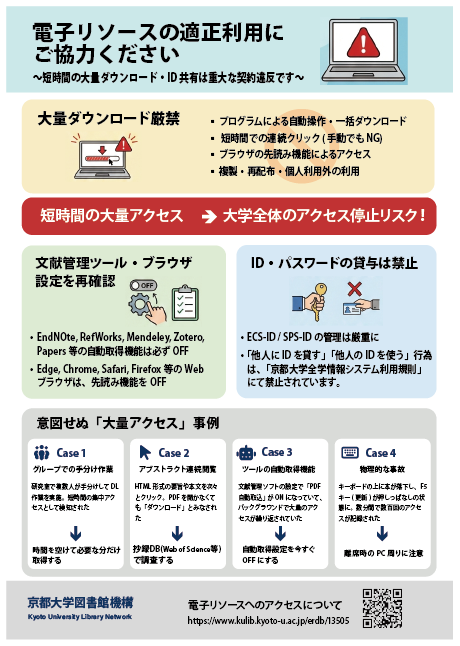
Prohibited Actions When Using Electronic Resources
Mass Downloading Strictly Prohibited
- Automated operations or bulk downloads using programs
- Rapid consecutive clicks (prohibited even manually)
- Access via browser prefetch functions
- Copying, redistribution, or use beyond personal purposes
Cases of Unintentional "Excessive Access"
Cases where actions are considered "attacks" by system specifications are increasing, even without malicious intent.
Multiple people in a lab divided download tasks manually. Since the access source (university IP) was the same, it was detected as concentrated access in a short period.
Clicking through HTML abstracts and full texts one after another. Even without opening PDFs, the request frequency to the server was considered "downloading".
The "auto-import PDF" setting in reference management software was ON, causing repeated mass access in the background.
A book fell on the keyboard, holding down the F5 key (refresh). Hundreds of accesses were recorded in just a few minutes.
Essential! Settings Review Checklist
Reference Management Software (Turn OFF Auto-DL)
Prevent unintended background communication.
| Paperpile | Settings > Storage & Sync OFF "Automatically download PDFs" |
|---|---|
| EndNote Click Mendeley | Disable the extension or uncheck "Automatically add PDFs" in settings. |
| Zotero | Do not run "Find PDF" on multiple selections. Turn OFF Connector proxy settings when off-campus. |
| ReadCube | Do not use "LOCATE PDF" on multiple selections. |
Web Browser (Turn OFF Prefetch)
"Page loading speed improvement" features access sites in the background.
| EEdge | Settings > Cookies and site data OFF "Preload pages for..." |
|---|---|
| CChrome | Settings > Performance OFF "Preload pages" |
| SSafari | Preferences > Search OFF "Preload Top Hit in..." |
| FFirefox | about:config > network.prefetch-next false Change value to "false" |
Generative AI & Data Mining
* Uploading content to cloud-based generative AI may constitute copyright infringement.
Strict Account Management
"Lending your ID to others" or "using someone else's ID" is prohibited under Kyoto University's Information System Usage Regulations.
Posters & Flyers